
A Sales Term is a payment expectation (like Net 30 or COD) with three pieces of info:
| Field | What it means | Example |
|---|---|---|
| Name | The label customers see on invoices | Net 30 |
| Due Days | How many days after the invoice date payment is due | 30 |
| Default | If checked, this term is pre-selected on new records for everyone in your company | Only one term can be default at a time |
When a term is assigned to a customer, every new invoice for that customer gets:
- The term's name printed on the invoice
- The Due Date automatically calculated as Invoice Date + Due Days
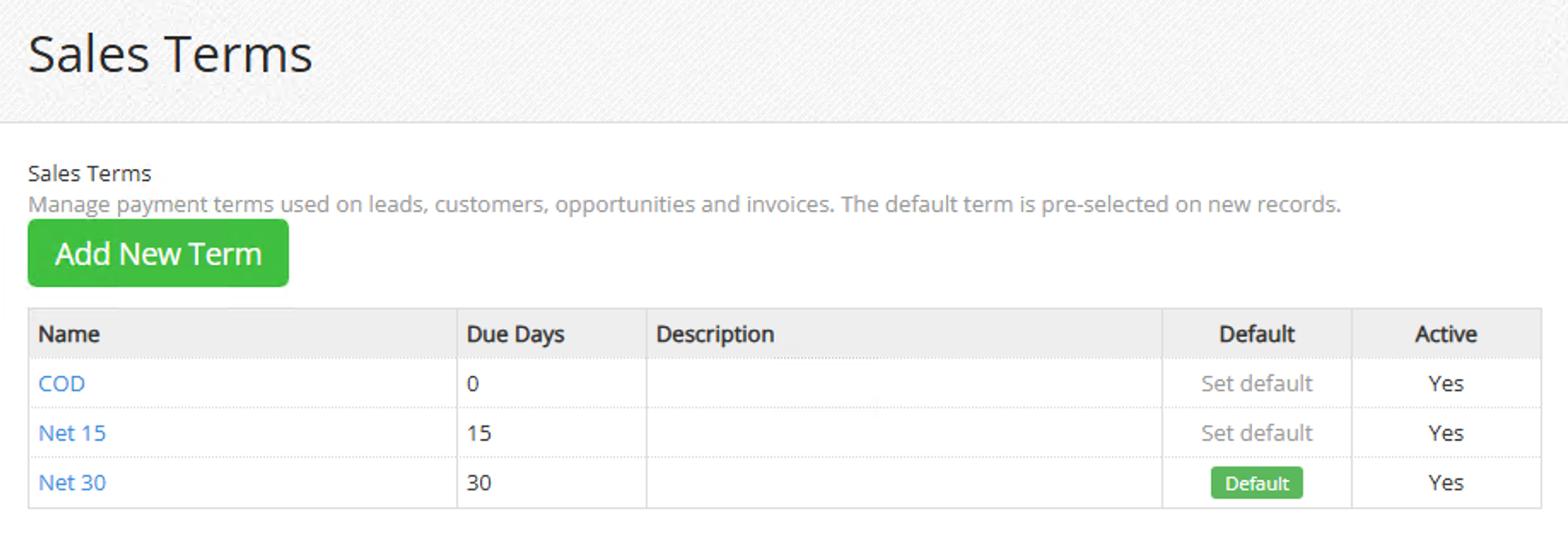
If your company is not connected to QuickBooks or Sage Intacct
You manage Sales Terms directly inside FieldGroove. Go to Settings and click the green "Manage Sales Terms" button under the Term / Account Type row.
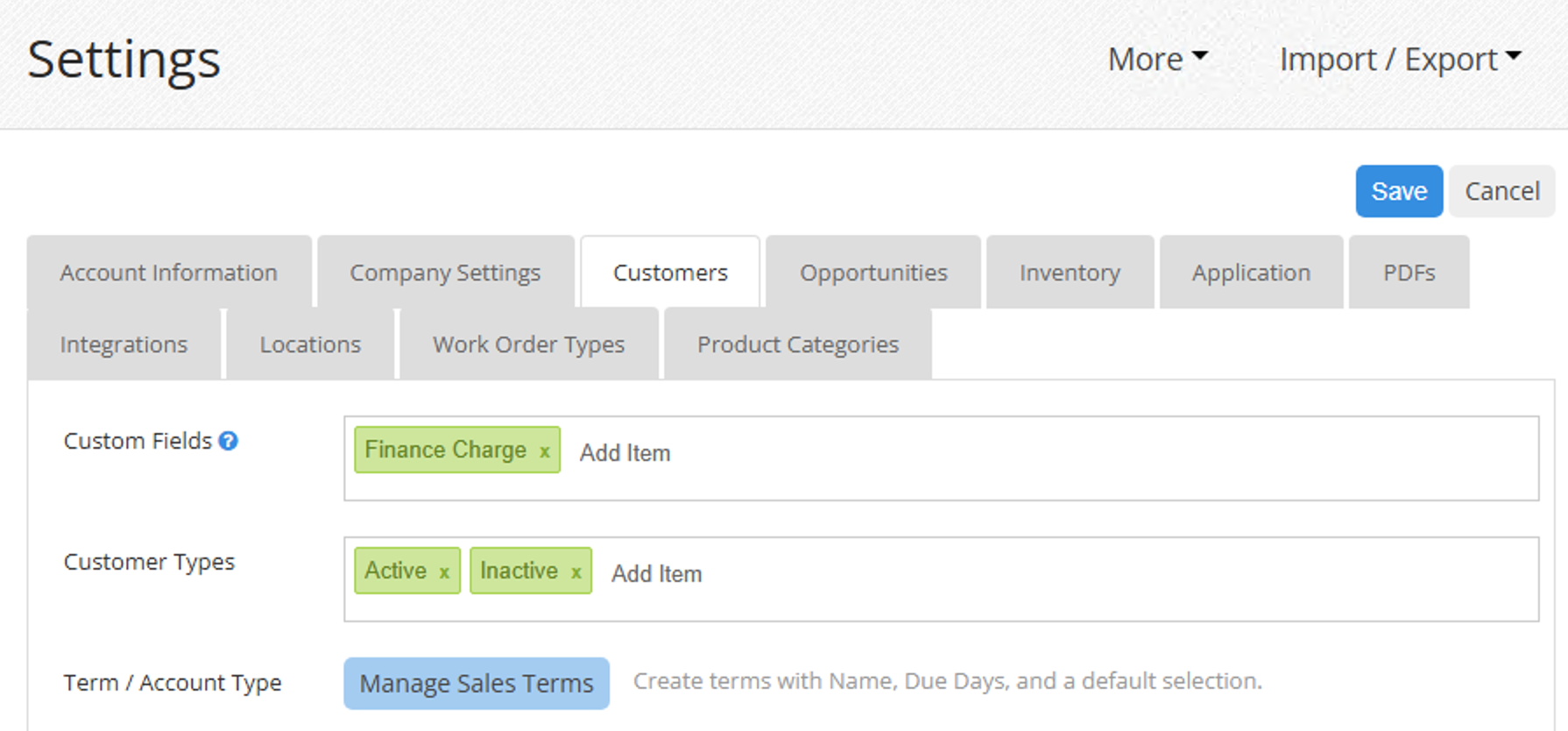
From the /Terms admin page you can:
- Add New Term — give it a name, due days, optional description
- Edit a term — change the name, due days, mark active/inactive, mark default
- Set Default — click "Set default" on any term row to make it the default for new records (only one default per company)
- Delete — remove a term you no longer use
If your company is connected to QuickBooks Online, Desktop, or Sage Intacct
Your payment terms continue to sync from your accounting system. FieldGroove can't create or edit them directly — that would create a sync conflict. Instead, you'll see a message on the Settings page:
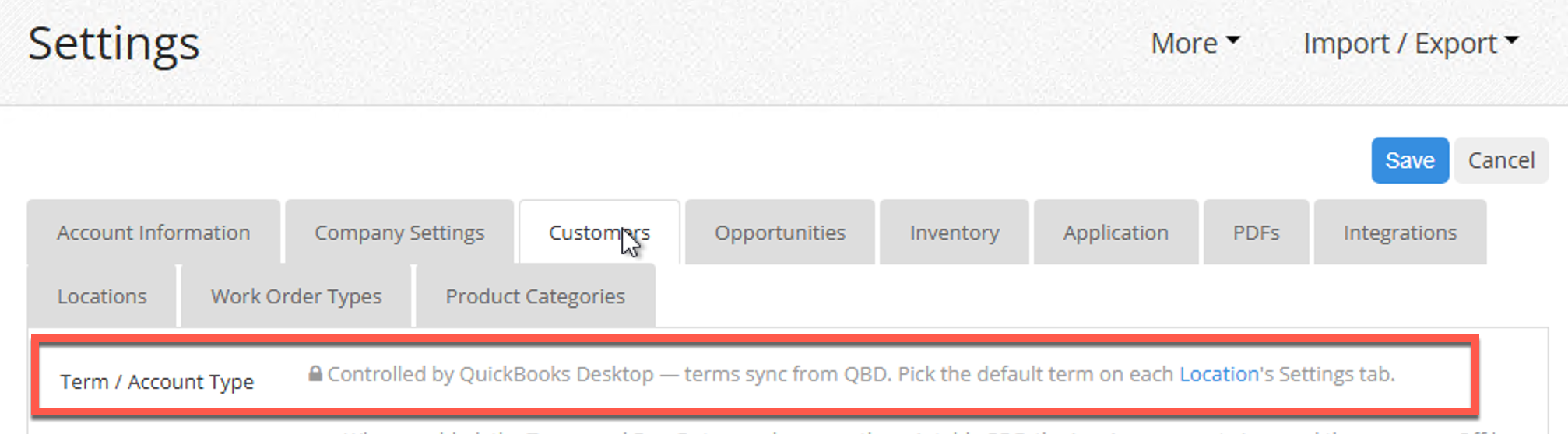
To create a new term in this case: add it inside QuickBooks (or Intacct), wait for the next sync, then come back to FieldGroove to assign it as a default or to customers.
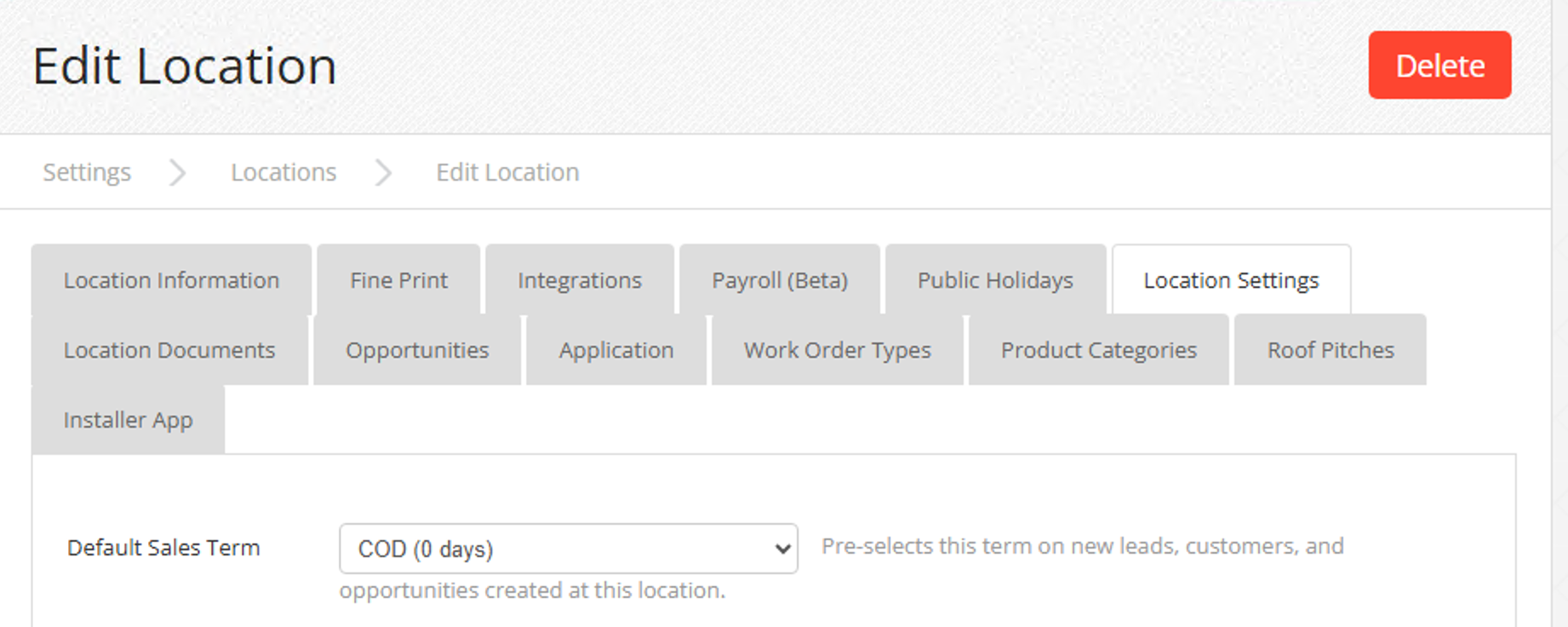
Setting a Default Term per LocationEvery Location can have its own default Sales Term. When a salesperson at that location creates a new lead, customer, or opportunity, the dropdown will be pre-filled with that location's default.
How to set it
- Go to Locations
- Click the location you want to update
- Click the Settings tab
- Find the Default Sales Term dropdown near the top of that tab
- Pick the term and click Save at the bottom of the page
How the default is chosen
If a location doesn't have its own default set, FieldGroove falls back to the company-wide default (whichever term you marked as Default on the /Terms admin page).
So you have flexibility:
- Set a company-wide default for the whole tenant
- Override per location if branches use different terms
Once a default is set, the right term automatically populates when you create:
A new Lead
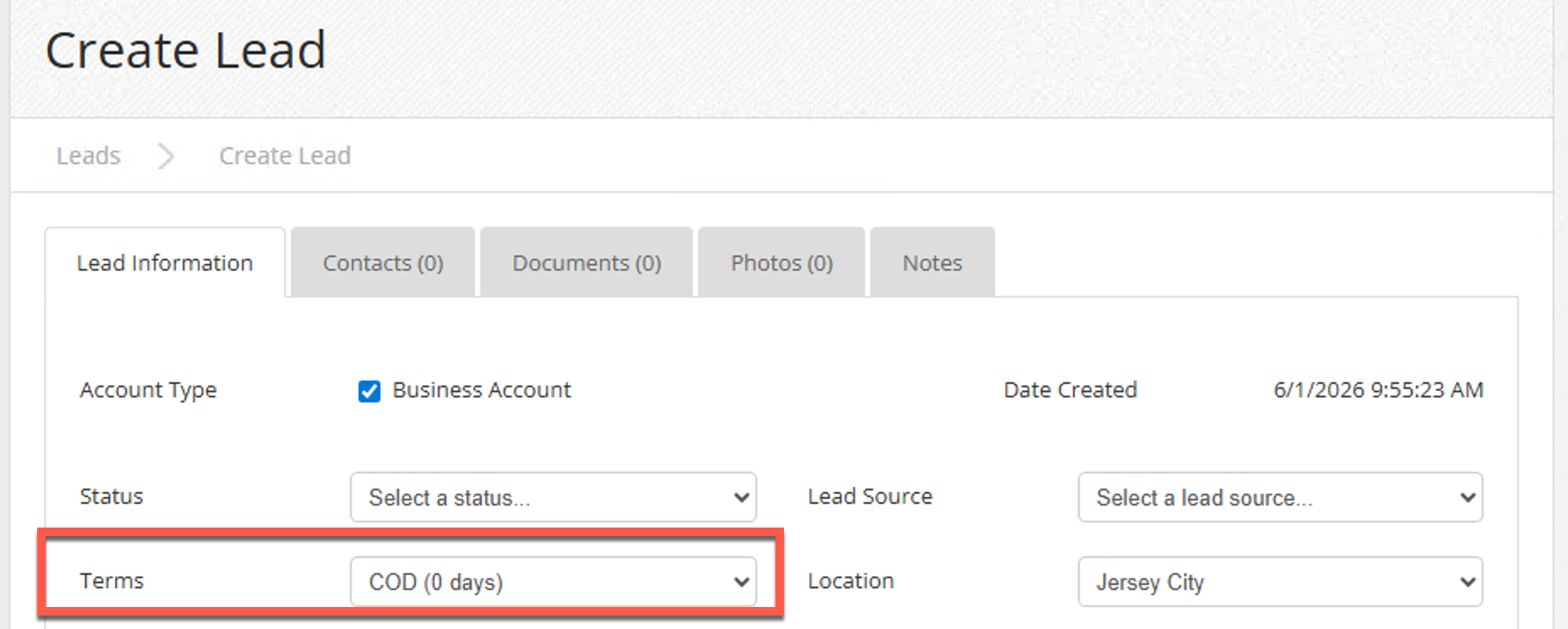
The Terms dropdown on the Lead form is pre-selected to the location's default (or company default if the location has none). The salesperson can still change it before saving.
A new Customer
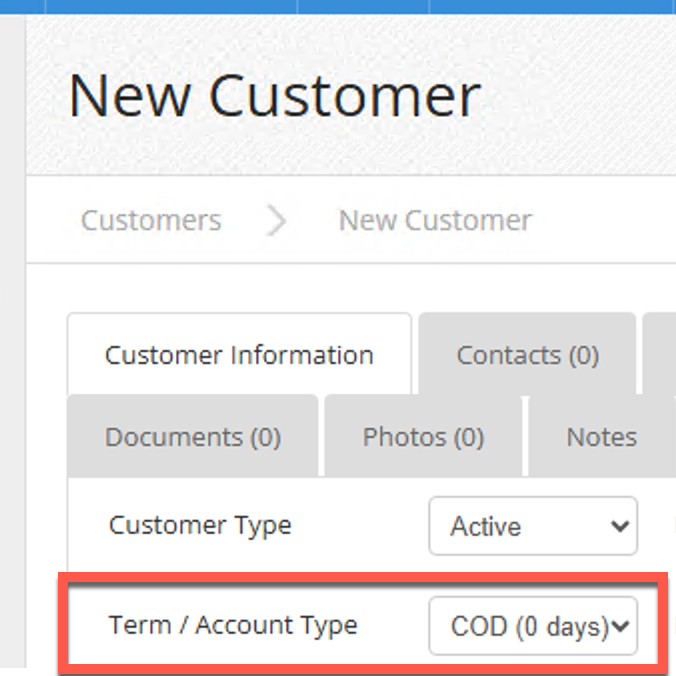
The Term / Account Type dropdown is pre-selected to the default.
A new Opportunity (Start New Opportunity)
The opportunity inherits the customer's term automatically. You can override on the opportunity itself.
How invoices use Sales TermsWhen an invoice is generated for a project, FieldGroove:
- Looks up the customer's assigned Sales Term
- Reads its Due Days value
- Calculates Due Date = Invoice Date + Due Days
- Snapshots the term name and due-day count onto the invoice record (so future changes to the term won't retroactively alter old invoices)
Showing Terms and Due Date on customer-facing invoices
Out of the box, this display is OFF — your invoices won't show the new Terms and Due Date rows unless you opt in. This is intentional: existing tenants see no change to their invoice layout until they're ready.
To turn it on:
- Go to Settings
- Find "Show Due Date on Invoice" (a checkbox)
- Check it and save
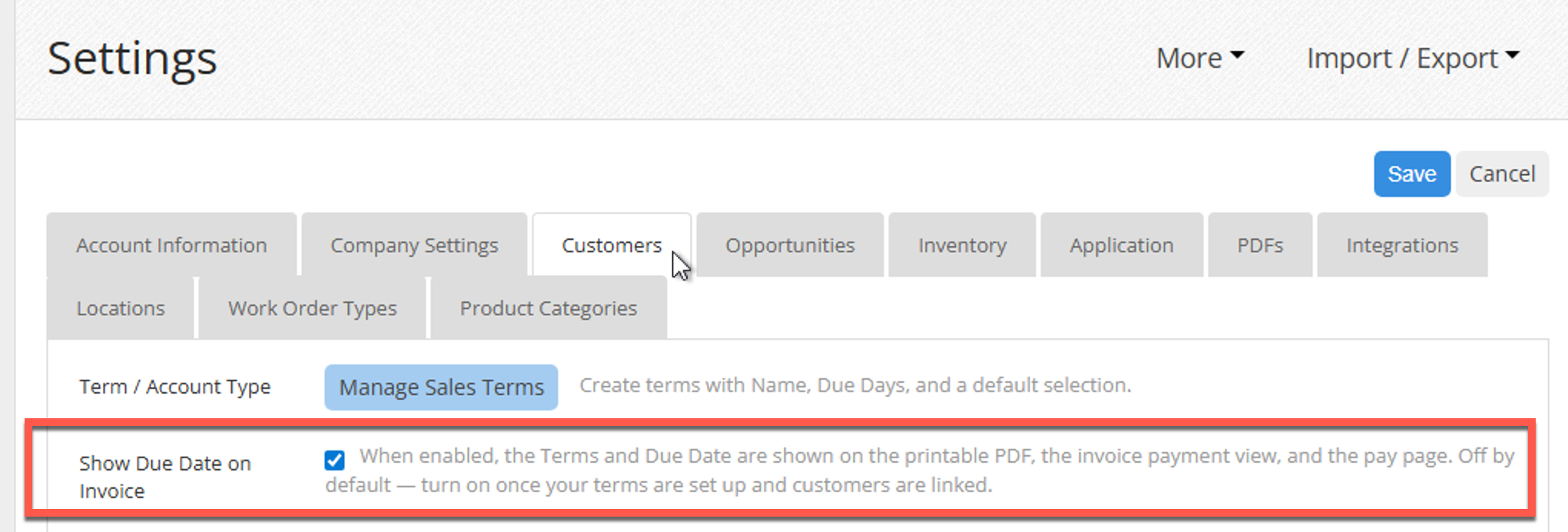
Once enabled, every customer-facing invoice surface will display the Terms label and Due Date:
- Printable PDF (Download PDF on an invoice)
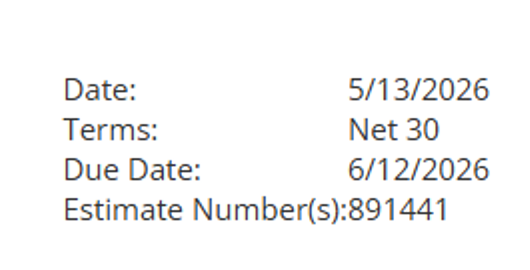
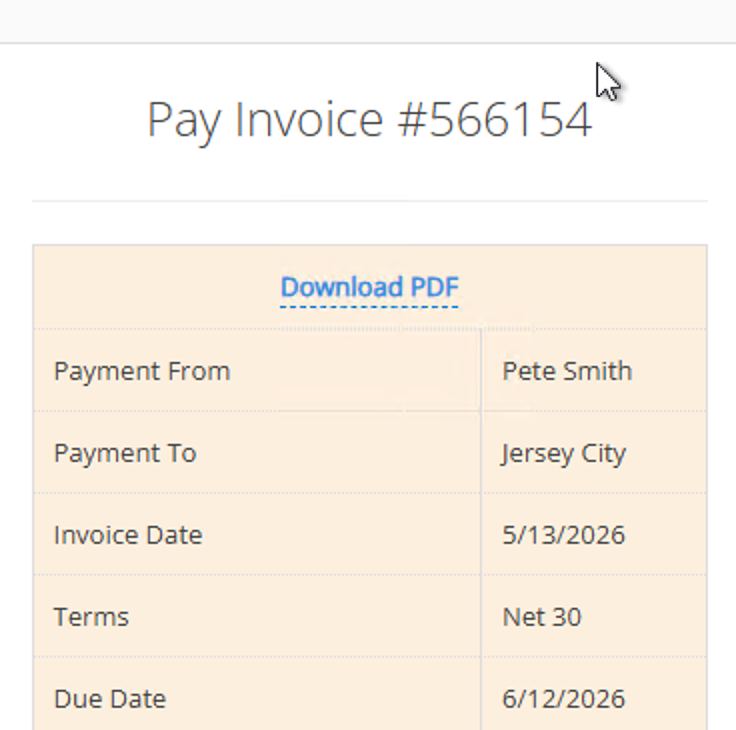
- Pay page (when you email a customer a payment link)
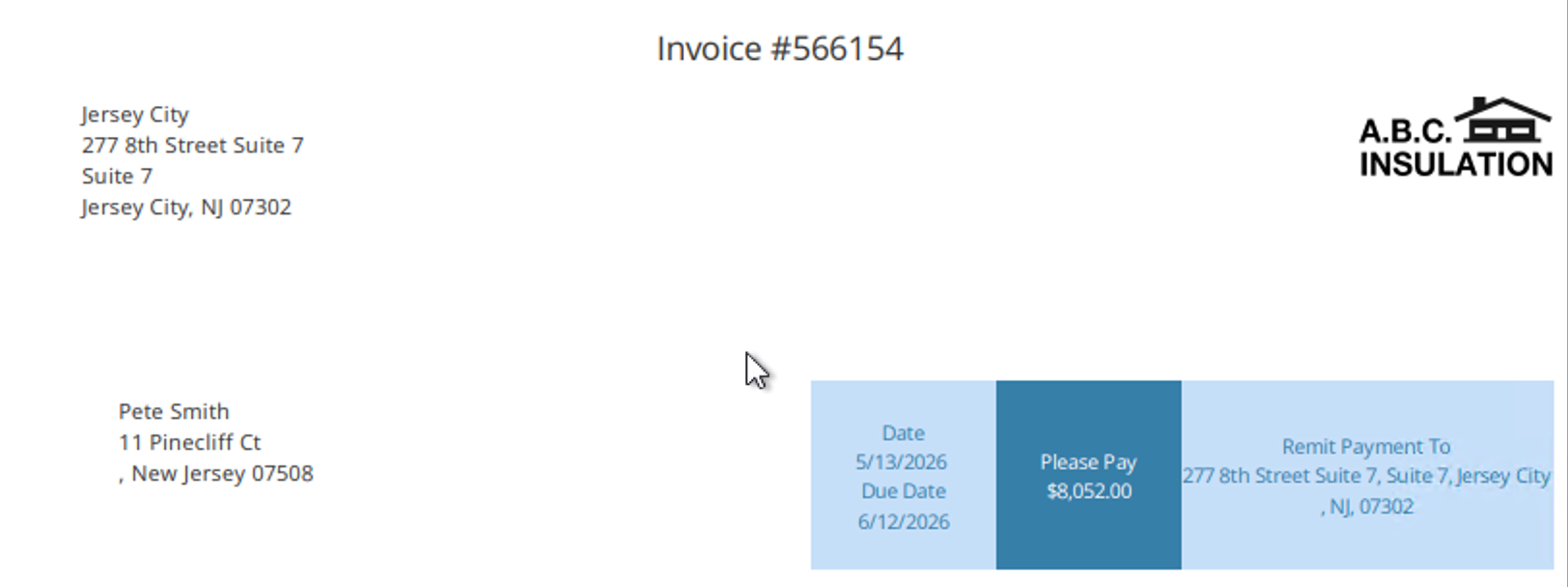
- Envelope invoice variant (the window-envelope style printable)
What about old invoices created before this feature?
We handle them gracefully. Invoices created before Sales Terms shipped don't have a saved snapshot of the term — so at render time, FieldGroove looks up the customer's current term and computes a due date from the invoice date.
The result: even your historical invoices look good when you turn on "Show Due Date on Invoice", as long as the customer has a term assigned.
Active vs Inactive termsA term can be marked Active or Inactive:
- Active — shows up in dropdowns for new leads, customers, and opportunities
- Inactive — hidden from new-record dropdowns, but still works on existing records that reference it
Use Inactive when you've stopped offering a term but historical records still use it. The customer's invoice will still print correctly; the term just won't clutter dropdowns going forward.
What happens to terms I already had before this update?If you were maintaining a list of term names in FieldGroove before this release (the comma-separated tag list on Settings labeled "Term / Account Type"), nothing is lost. When this release is applied to your tenant, FieldGroove automatically:
- Converts every term name from your tag list into a real Term record (marked Active)
- Converts any other term name that appears on a customer or opportunity into a Term record (marked Inactive — present for historical accuracy, hidden from new-record dropdowns)
- Links your existing customers and opportunities to the matching Term records so the dropdown auto-selects the right value the next time you edit them
- Doesn't touch your existing invoices — they keep their current Due Date (if any) and use the live lookup we described above
So you should never lose visibility into how an existing customer was set up.
Frequently Asked QuestionsQ: Can I have more than one default term?
No — only one term per company can be marked Default at a time. Setting a new one automatically clears the prior default.
Q: My location dropdown shows "Use company default." What does that mean?
The location is inheriting the company-wide default (the term you marked Default on /Terms). Pick a different one to override; leave it on "Use company default" to inherit.
Q: I'm a QuickBooks customer. Where do I create a new term?
Inside QuickBooks. After the next sync, the term will appear in FieldGroove's dropdowns automatically.
Q: Can a salesperson override the default on a specific lead or customer?
Yes. The default is just a pre-fill — the dropdown is editable.
Q: Do existing invoices recalculate Due Date when I assign a term to a customer?
No. Existing invoices keep whatever Due Date they had at creation. Future invoices use the new term.
Q: I turned on "Show Due Date on Invoice" but it's not showing on one invoice.
That invoice's customer probably doesn't have a Sales Term assigned. Open the customer record and pick one — then refresh the invoice's printable.
Q: How do I turn the Due Date display back off?
Untick Settings → "Show Due Date on Invoice" and save. The rows hide everywhere immediately.
| Action | Where |
|---|---|
| Create / edit terms (non-integrated tenants) | Settings → Manage Sales Terms |
| View terms (QBO / Intacct tenants) | Sync from your accounting system; assign defaults per Location |
| Set the company-wide default | /Terms → click "Set default" on any active term |
| Set a per-location default | Locations → [location] → Settings tab → Default Sales Term |
| Turn on Due Date display on customer-facing invoices | Settings → Show Due Date on Invoice |
That's everything you need to start using Sales Terms in FieldGroove. Questions? Reach out to support@fieldgroove.com.