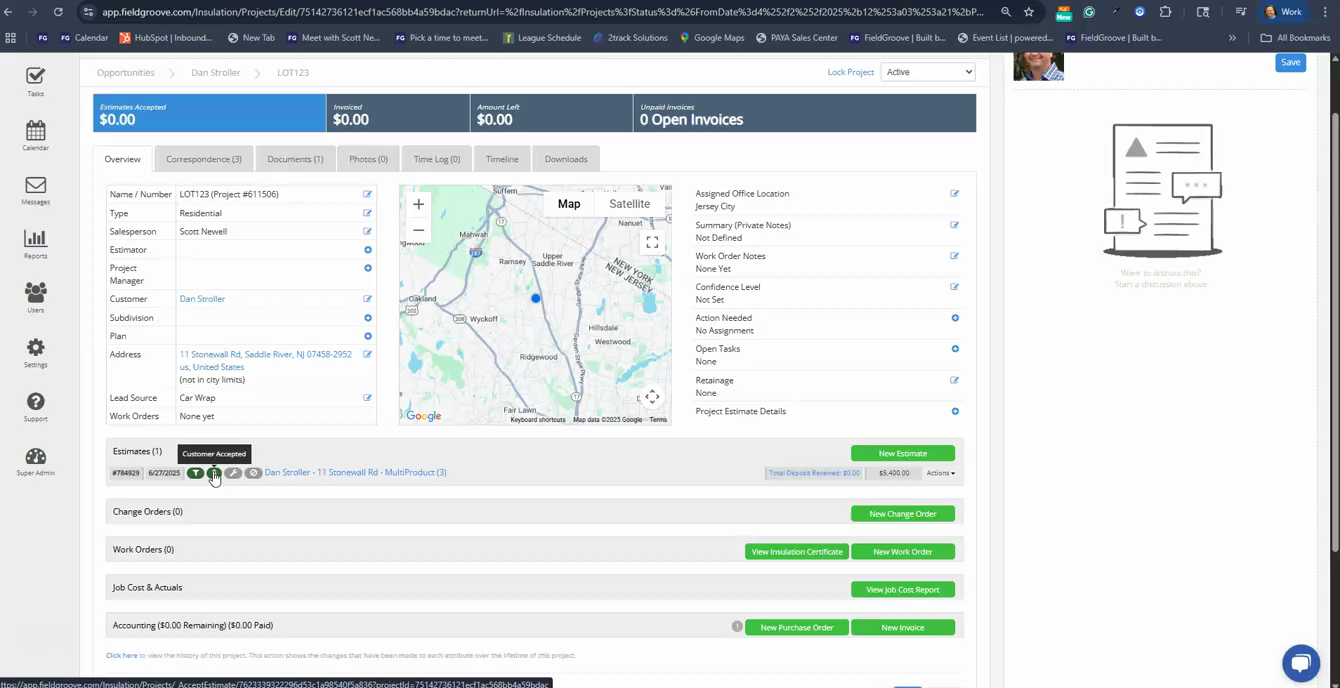
Step 1: Confirm the acceptance of the opportunity. You'll know it's accepted when it's marked green.
Step 2: Prepare to create a work order. Remember to manually check the box and turn it green.
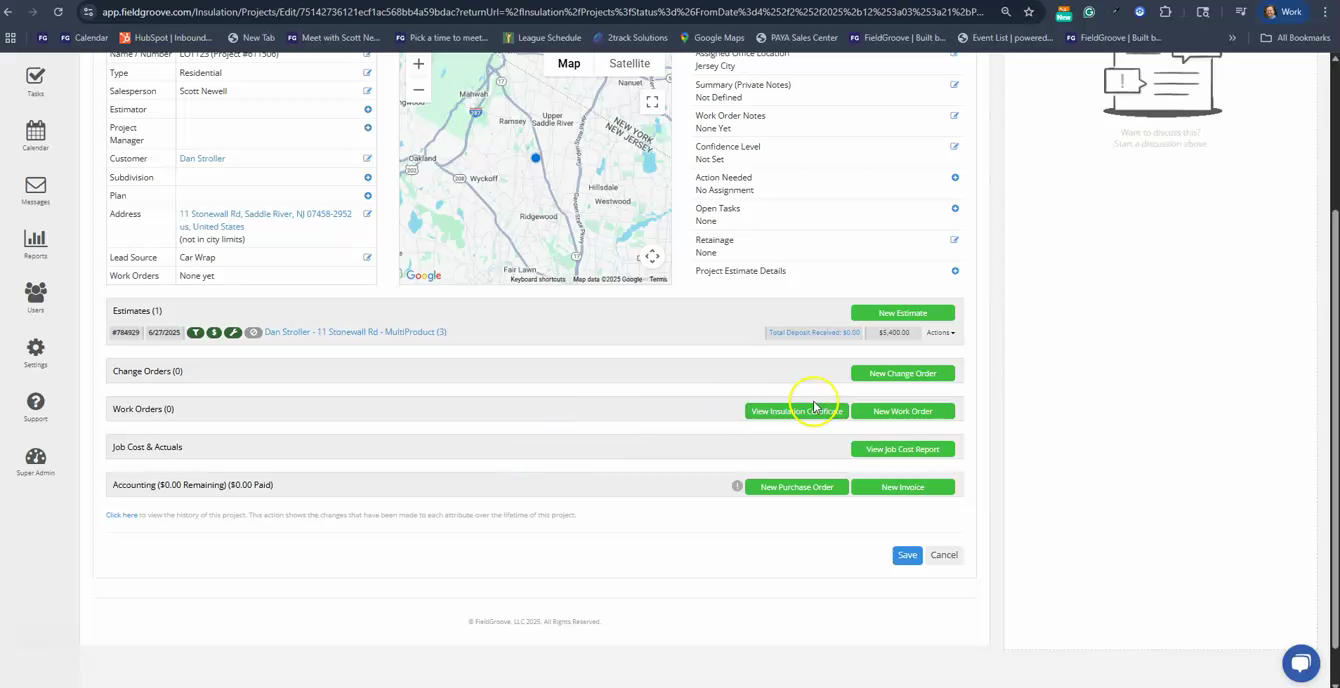
Step 3: Navigate to new work orders. Decide on the type of work order you're creating. In this case, we're creating a spray foam work order.
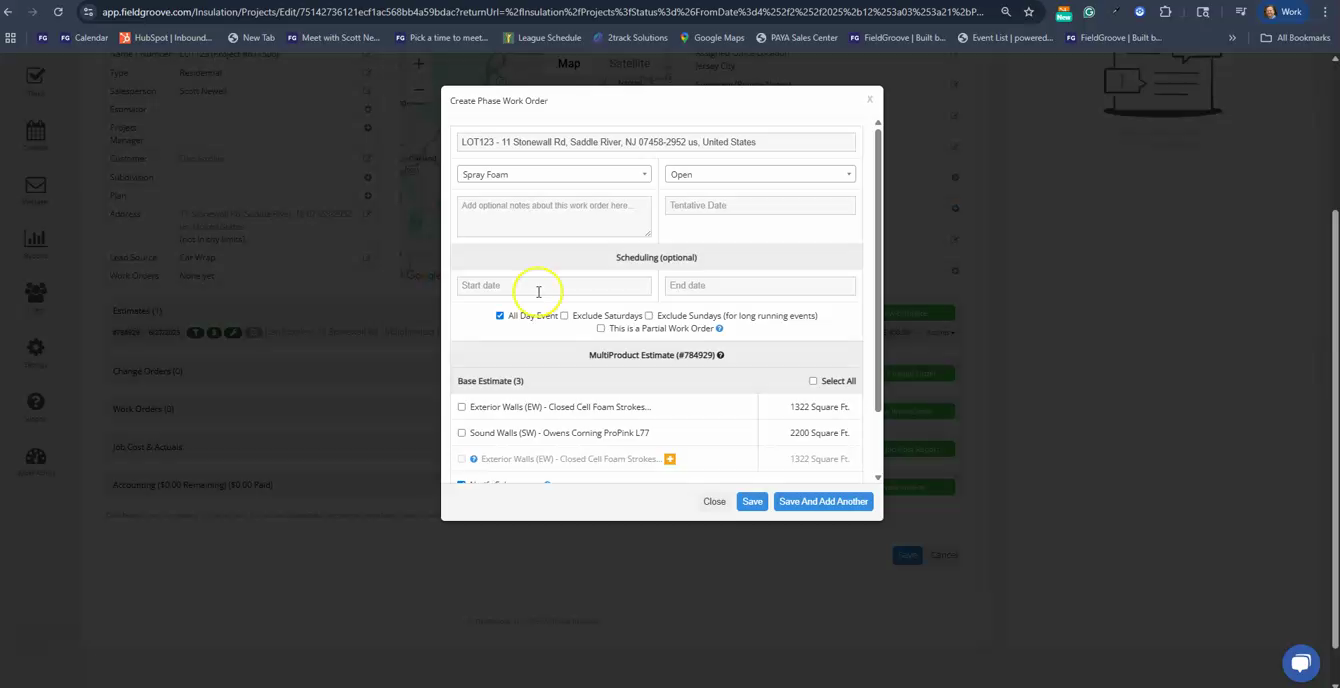
Step 4: Select a start date for the work order. In this example, we're starting on Monday the 8th. If there are options available, choose the one that suits your needs. Here, we're choosing the upgrade option.
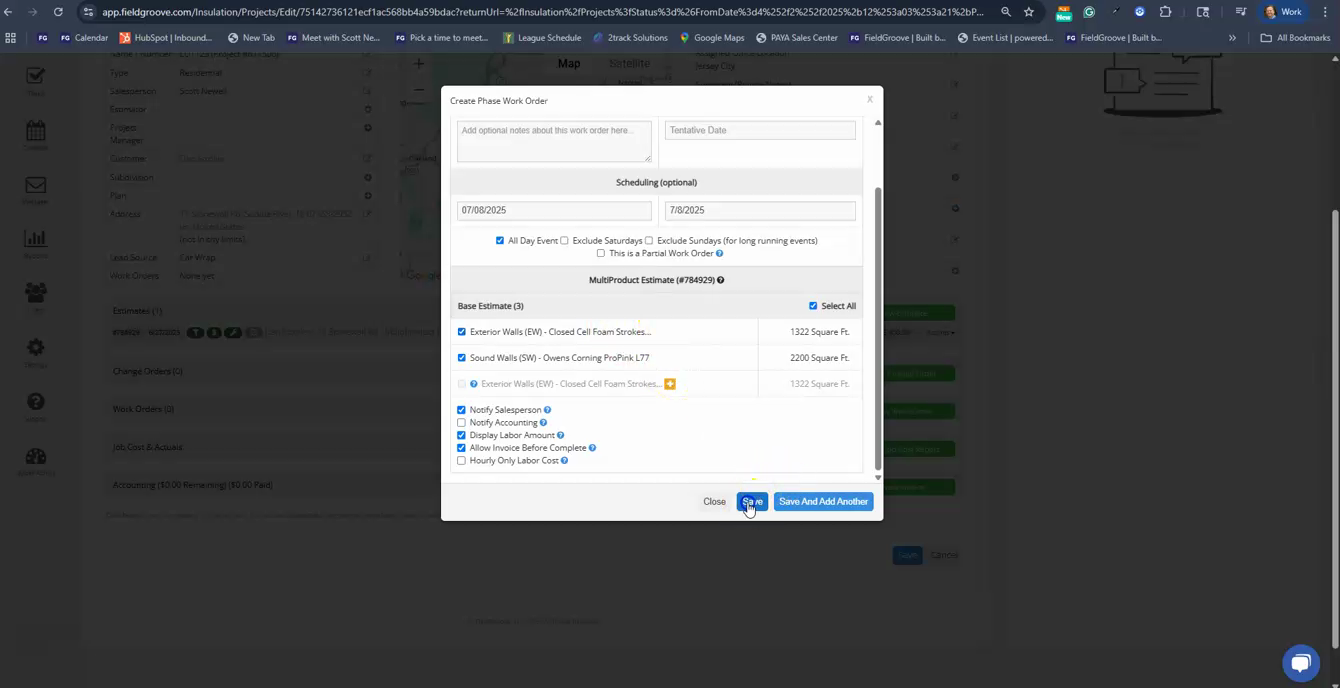
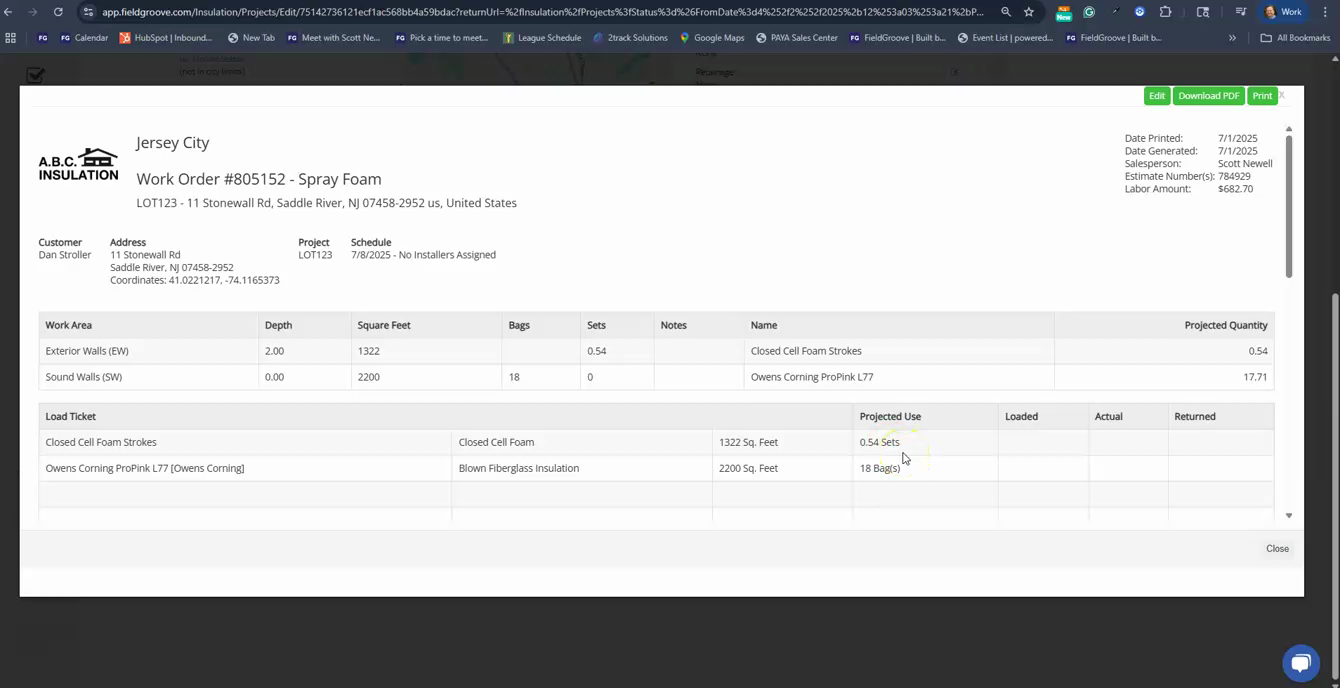
Step 5: Save your work order. Click on the link to view the status of your work order. You're also able to view a printable version of the work order, which displays the quantities needed for the spray foam, the L77, and the total amount in the work order.