
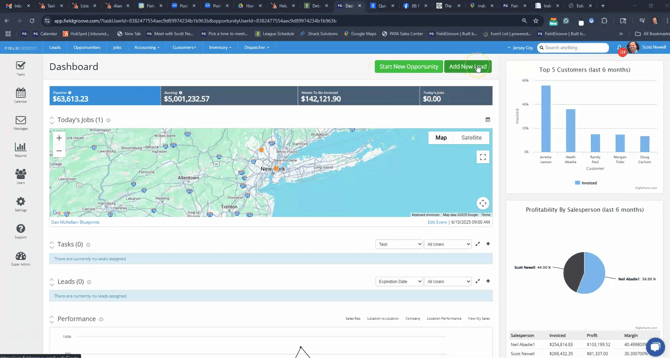
Step 1: Start by clicking on one of the two green buttons labeled Add New Lead on the dashboard.
Step 2: For a residential lead, uncheck the Business Account option.
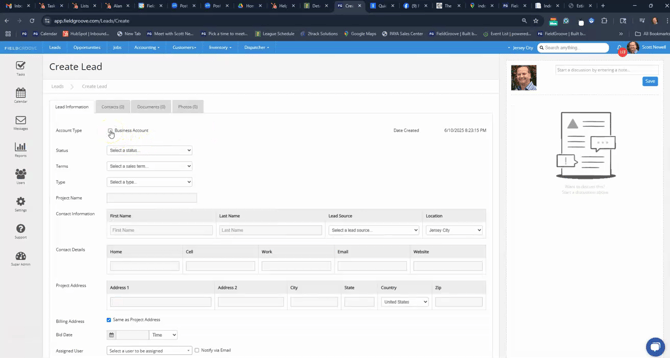
Step 3: Fill in the lead's details including status, terms, and type for the lead. We will need to include customer information such as First Name, Last Name, Lead source and location. We will also need to include contact details and the address for the project.
Step 4: Assign the lead to a salesperson and notify them via email. Set a field measure due date, in this case, Wednesday the 12th.
Step 5: Click on the Save button.
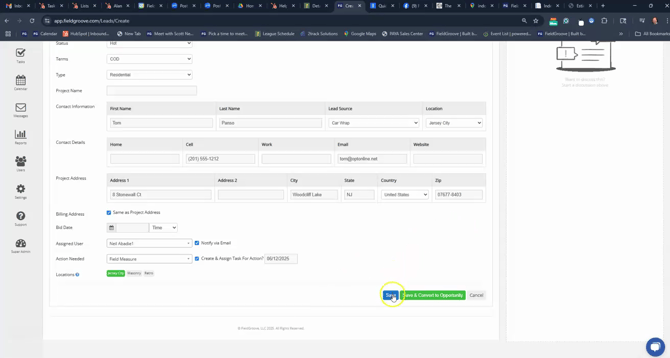
This action sends an email to the assigned salesperson notifying them of the new lead. The lead is then stored in the leads page.
Step 6: If you wish to add photos to the lead, go back into the lead's profile. Click on Browse Photos to upload multiple photos.
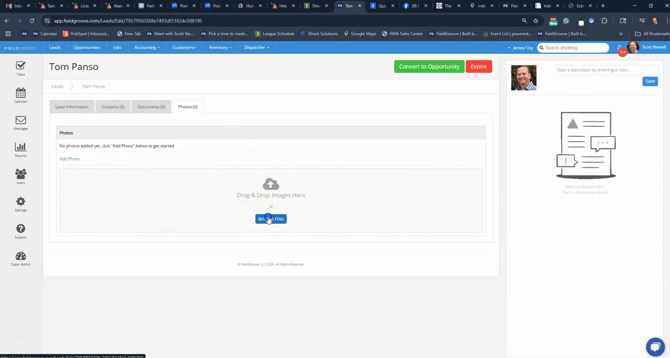
Step 7: You can also add documents, manufacturers, or additional contacts like a spouse.All these details stay in the leads table until they are removed.