
This article will guide you through the process of creating an estimate from a lead that is ready to move into an opportunity. By following these steps, you'll learn how to convert a lead into an opportunity, create a new estimate, and send it to the customer.
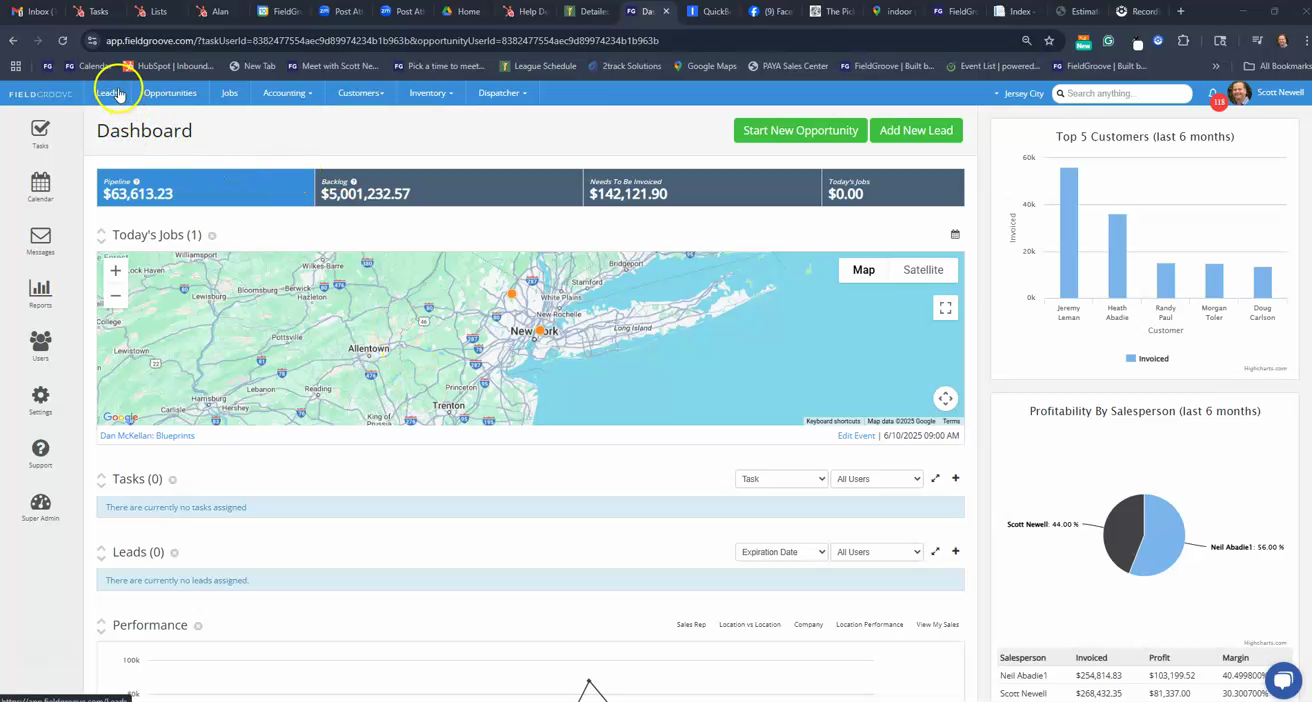
Step 1: Navigate to the leads table and select the lead that is ready for an estimate.
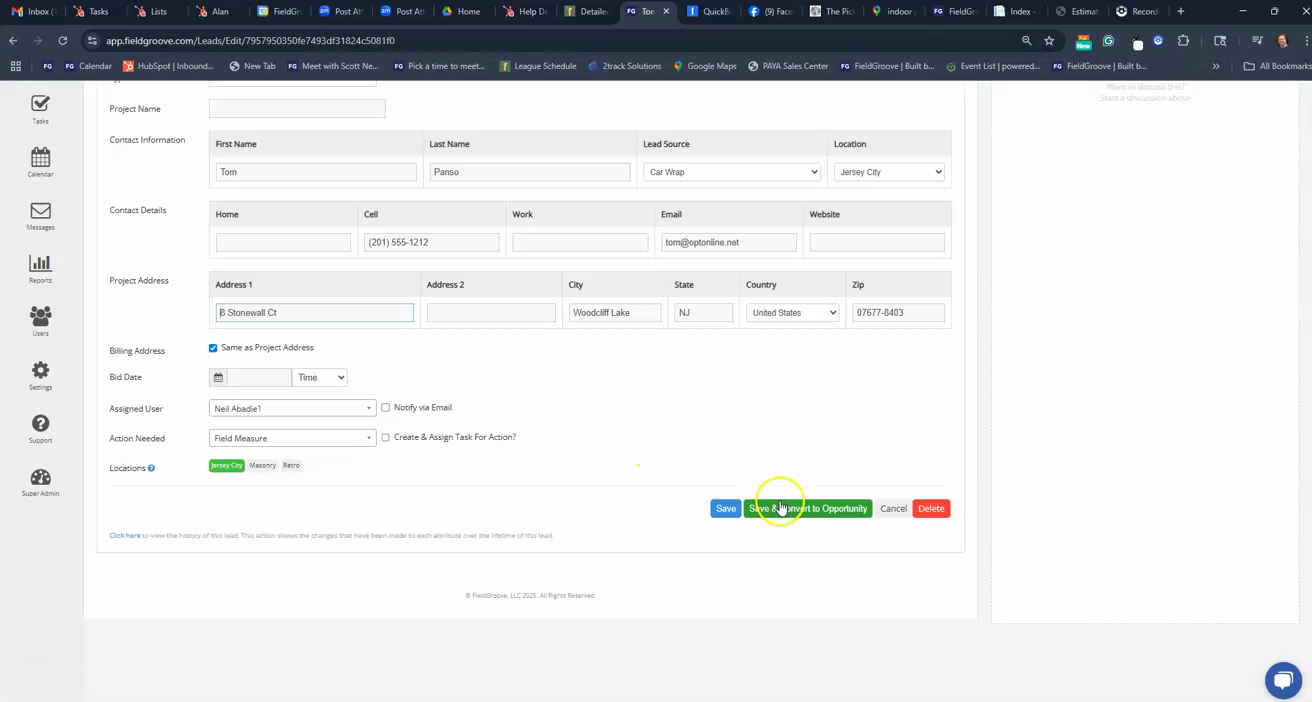
Step 2: Click on save and then convert to an opportunity for the selected lead. In this case, we're working with a Tom Panzo deal.
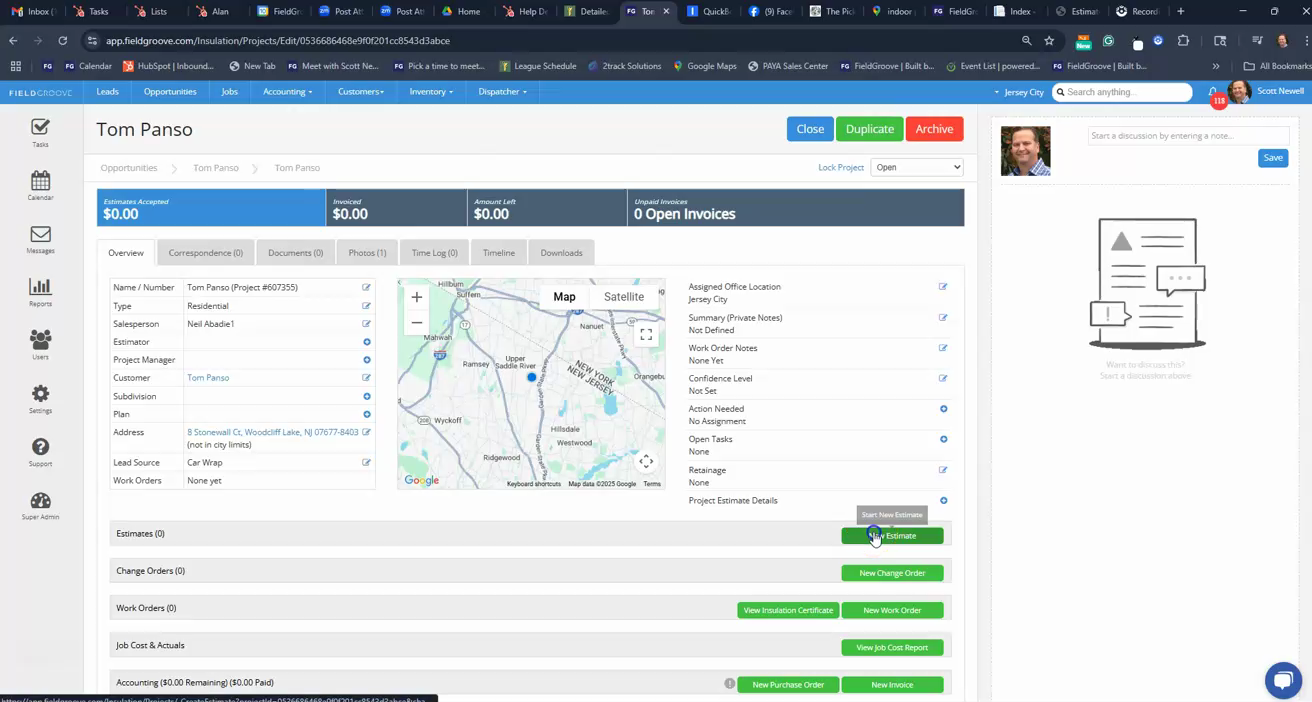
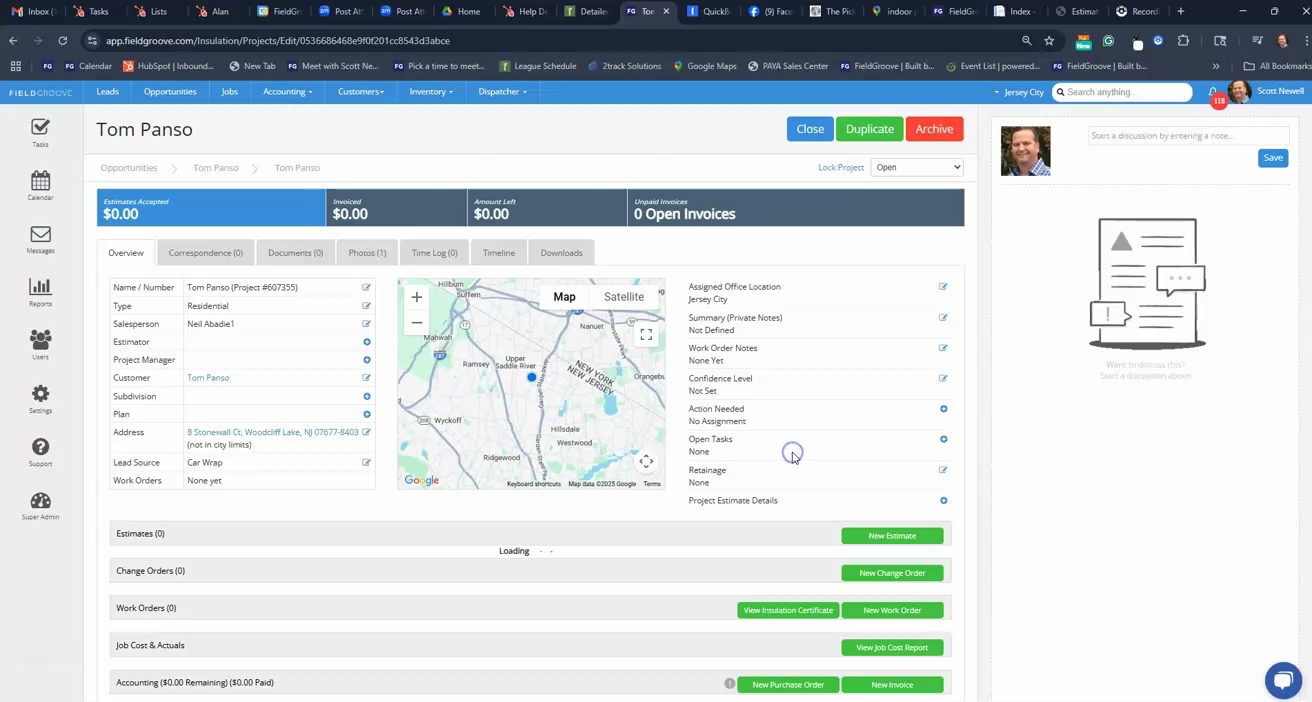
Step 3: Scroll down and click on create new estimate. Specify the type of estimate (in this case, a hybrid) and set a required deposit percentage (50% in this example).
Step 4: Click on create to start adding line items to your estimate.
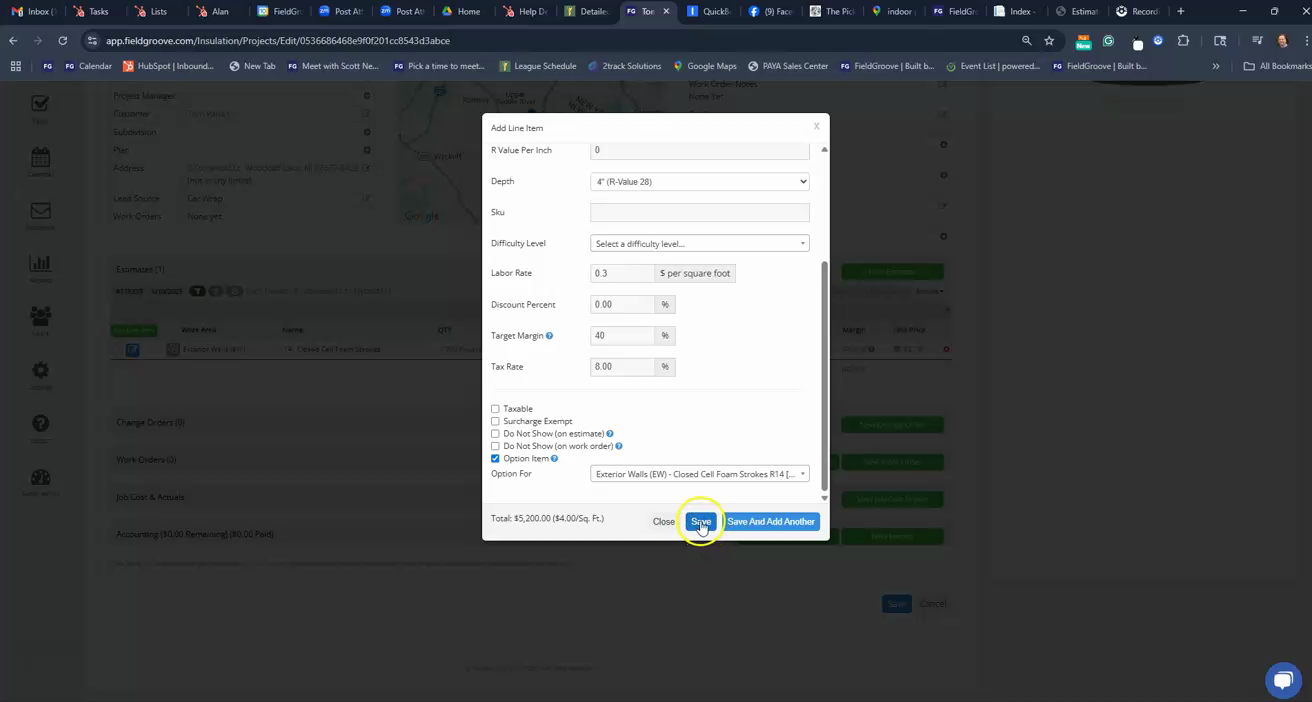
Step 5: Add line items to your estimate. In this example, we're adding closed cell foam to the exterior walls with specific measurements. After adding each item, click on save and add another.
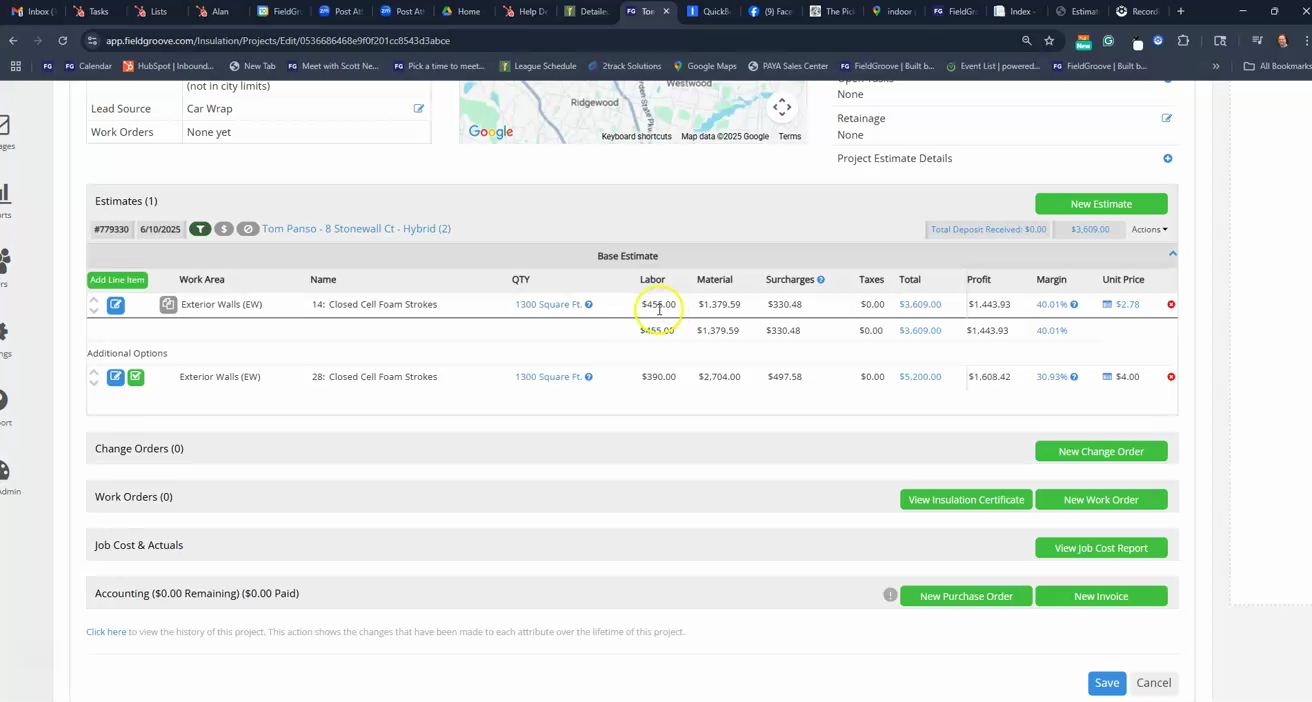
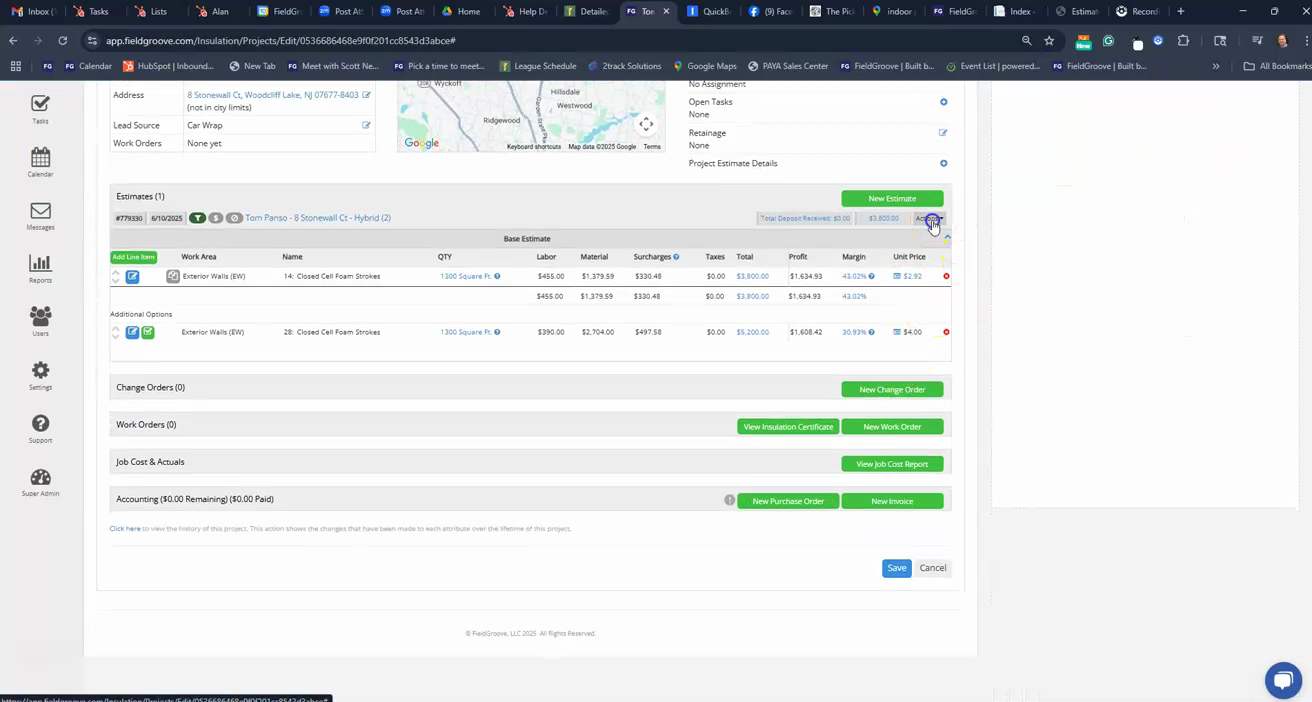
Step 6: Review your estimate. If necessary, make adjustments to the square footage or price. In this example, we're raising the price to $3,800.
Step 7: Once you're satisfied with the estimate, click on send via email to send the estimate to the customer.
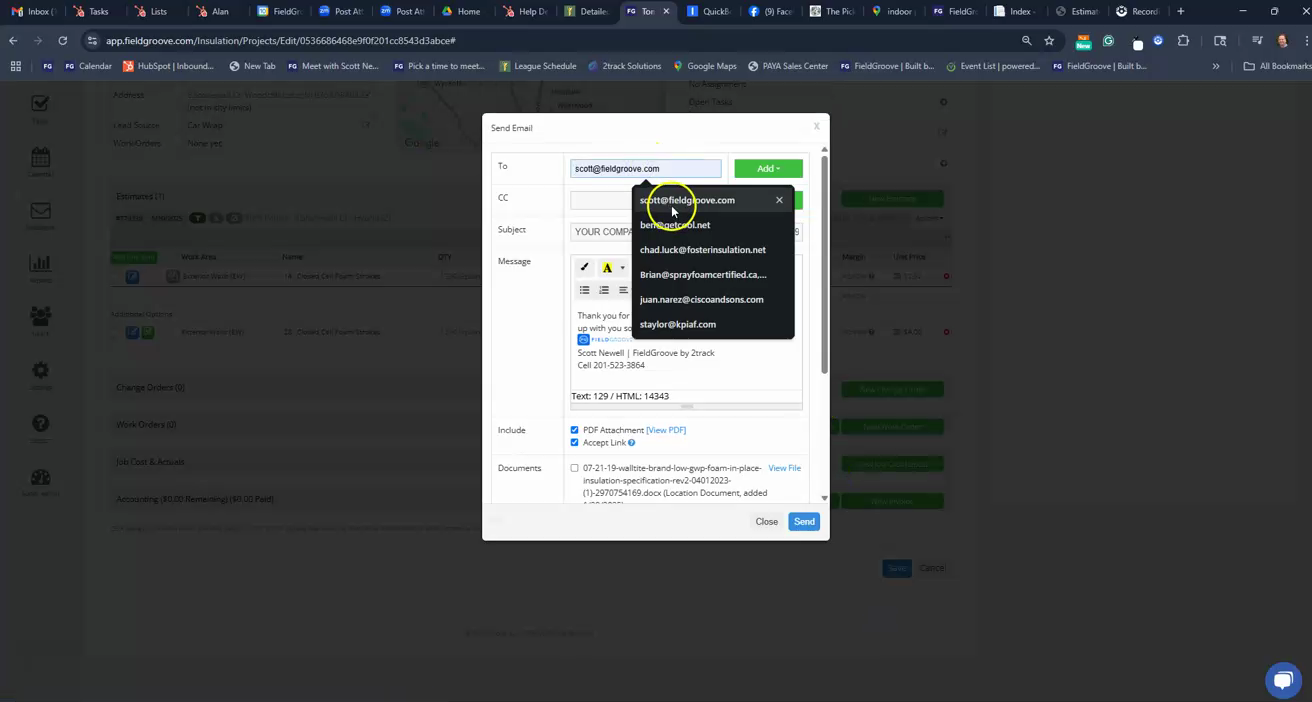
Step 8: Enter your email address, add any necessary attachments, and click on send.
Step 9: Confirm that your email was sent successfully. You'll see a green light indicating that the email has been sent and is now in the queue.
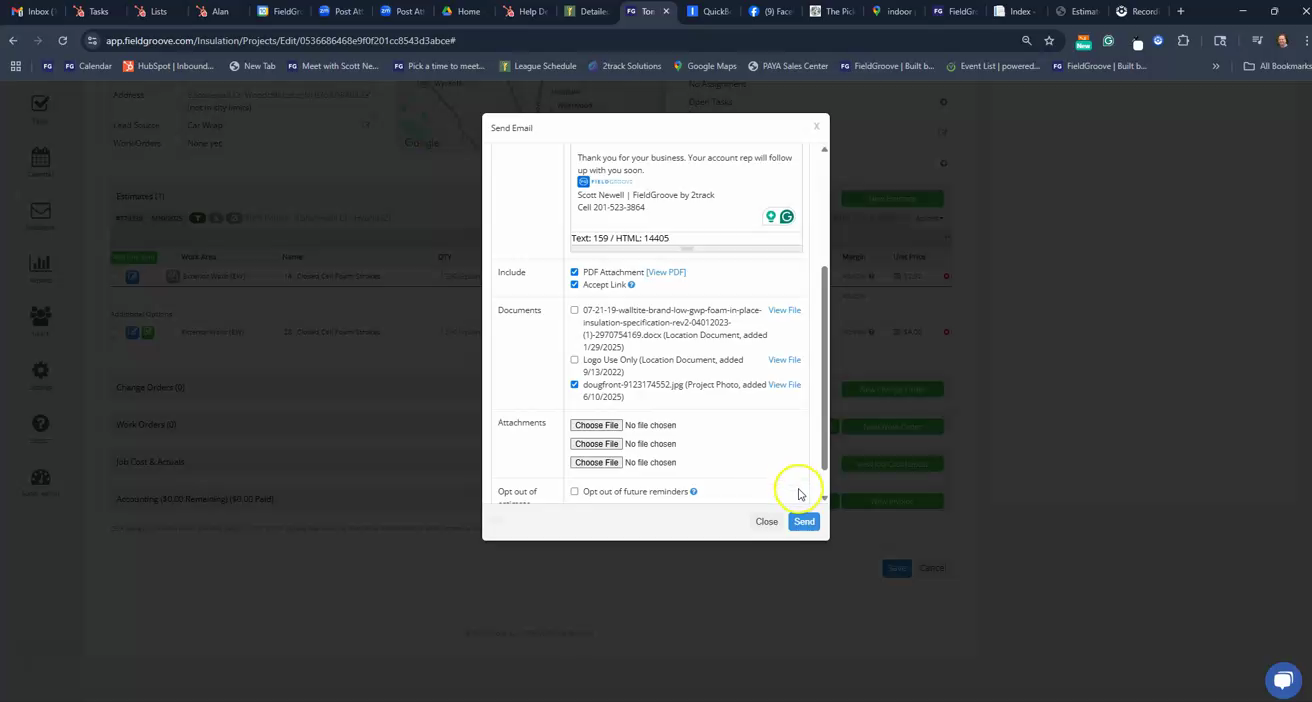
Step 10: Check the email that was sent. It should include your company logo, any attachments you added, and a PDF of the estimate.
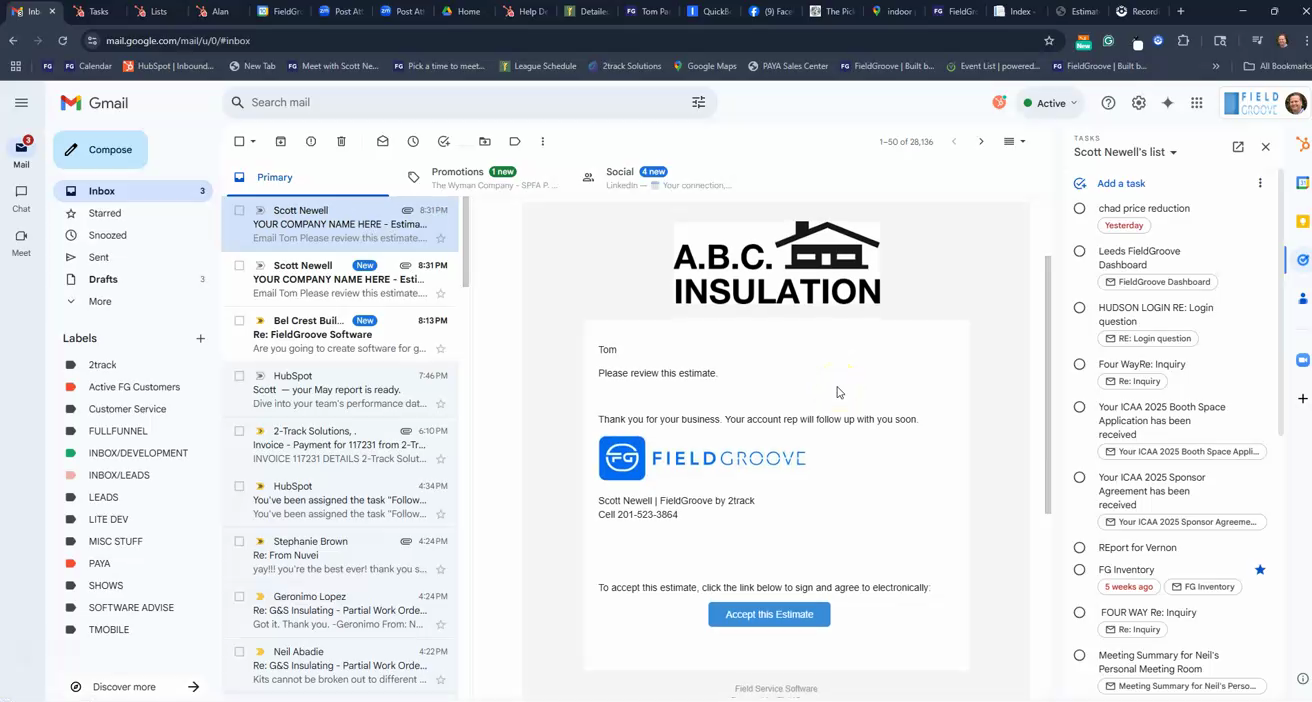
Step 11: The customer can now review the estimate, choose any available options, and sign and pay the deposit. They have the option to pay via credit card or bank account.
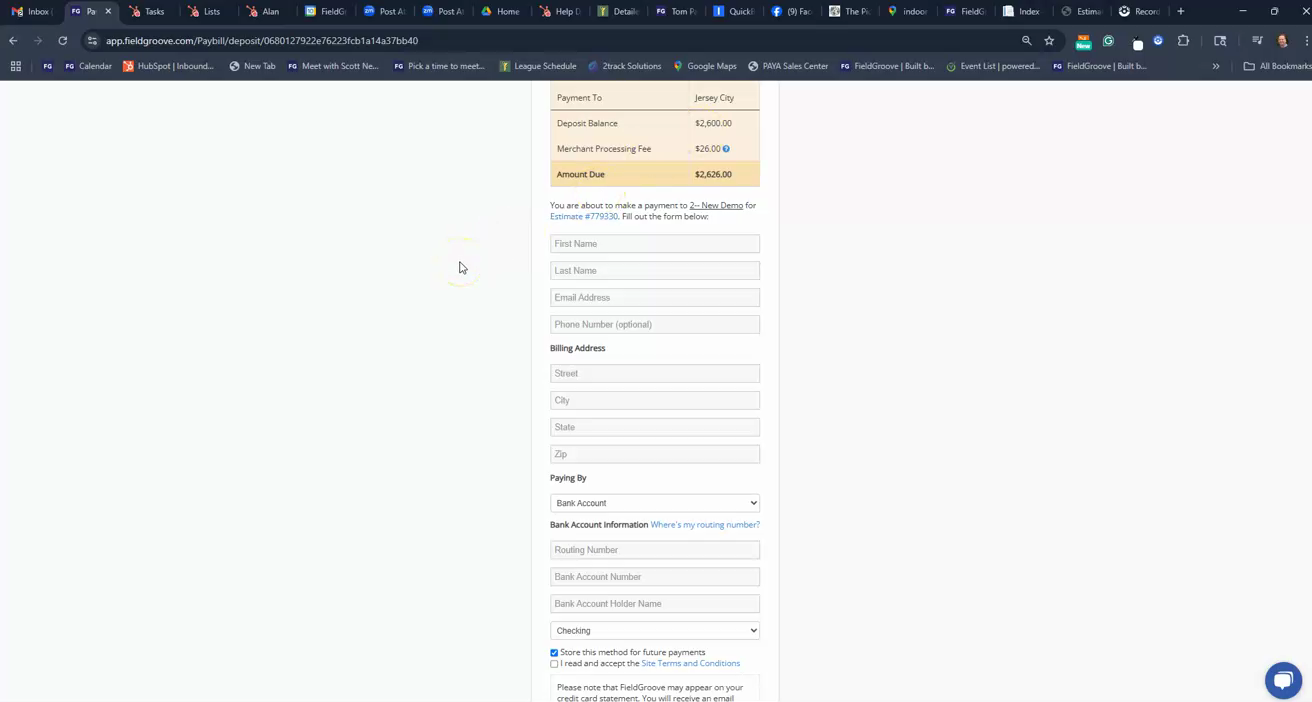
And that's how you create and send an estimate in FieldGroove.