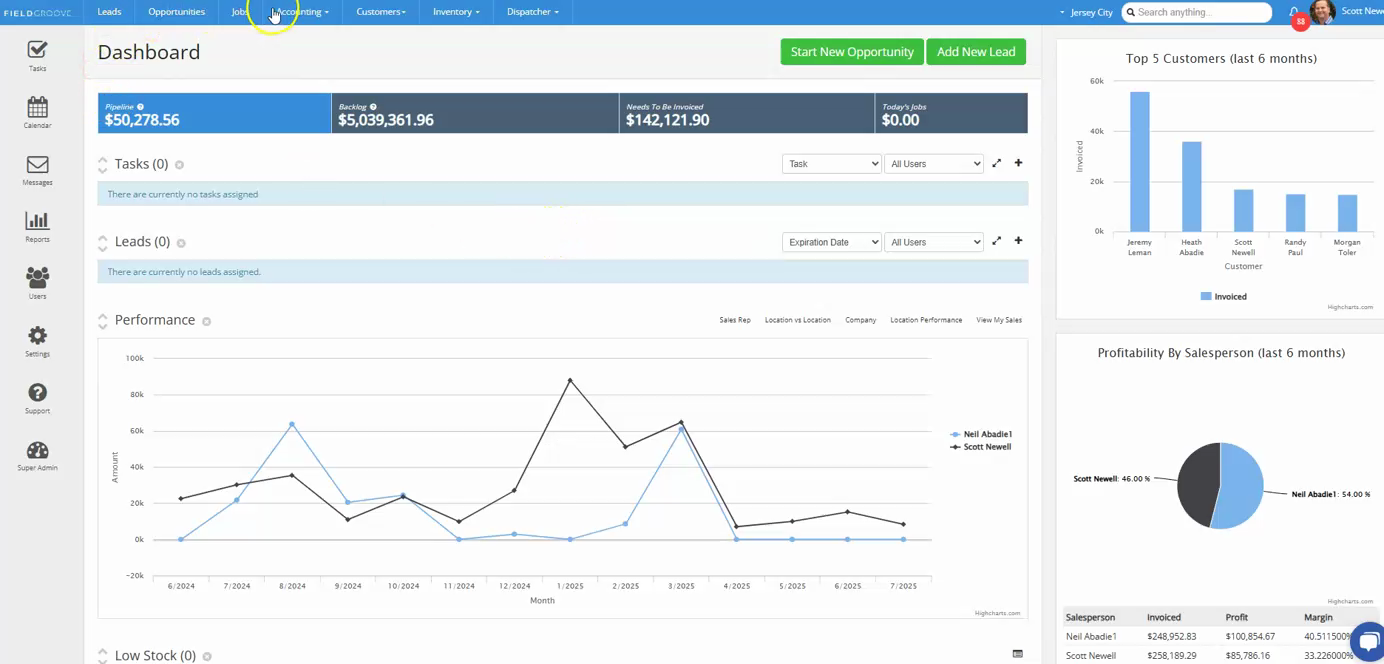
Step 1: Navigate to the accounting section and open the invoices. Select the invoice that has been paid by Xero.
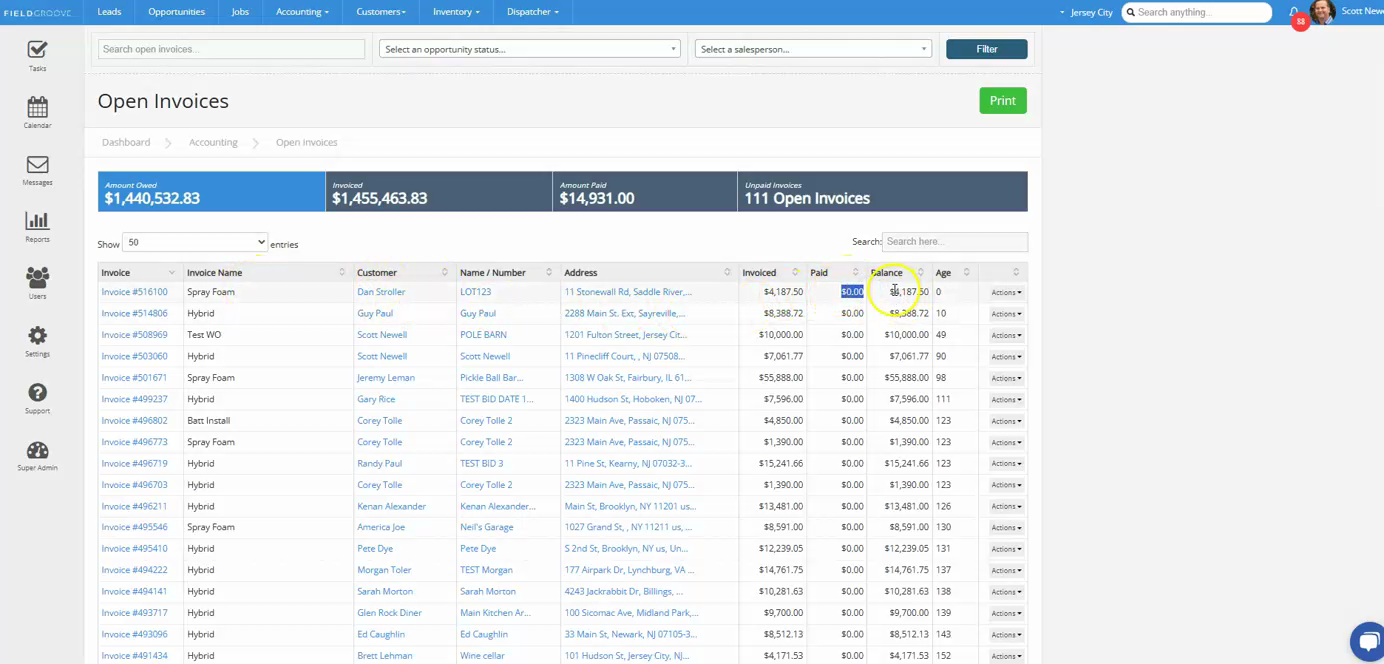
Step 2: Observe the balance. In this example, it's $4,000.
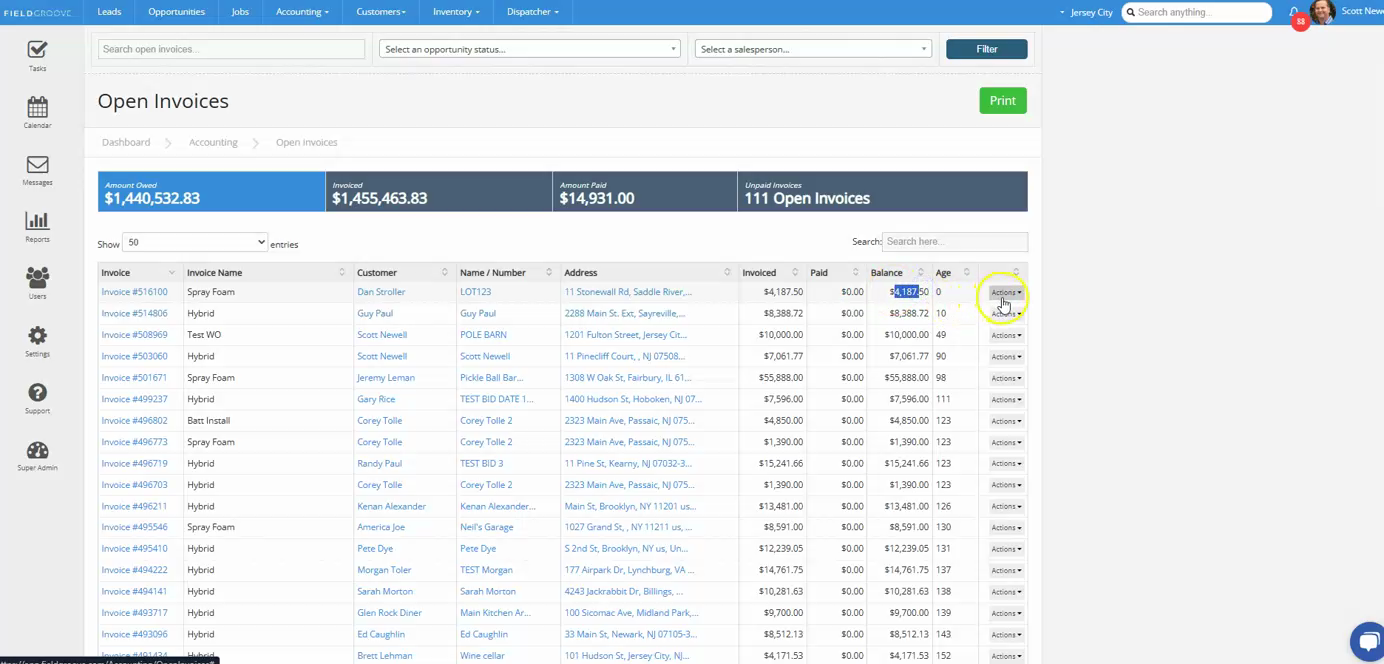
Step 3: Click on the actions button and select add payment.
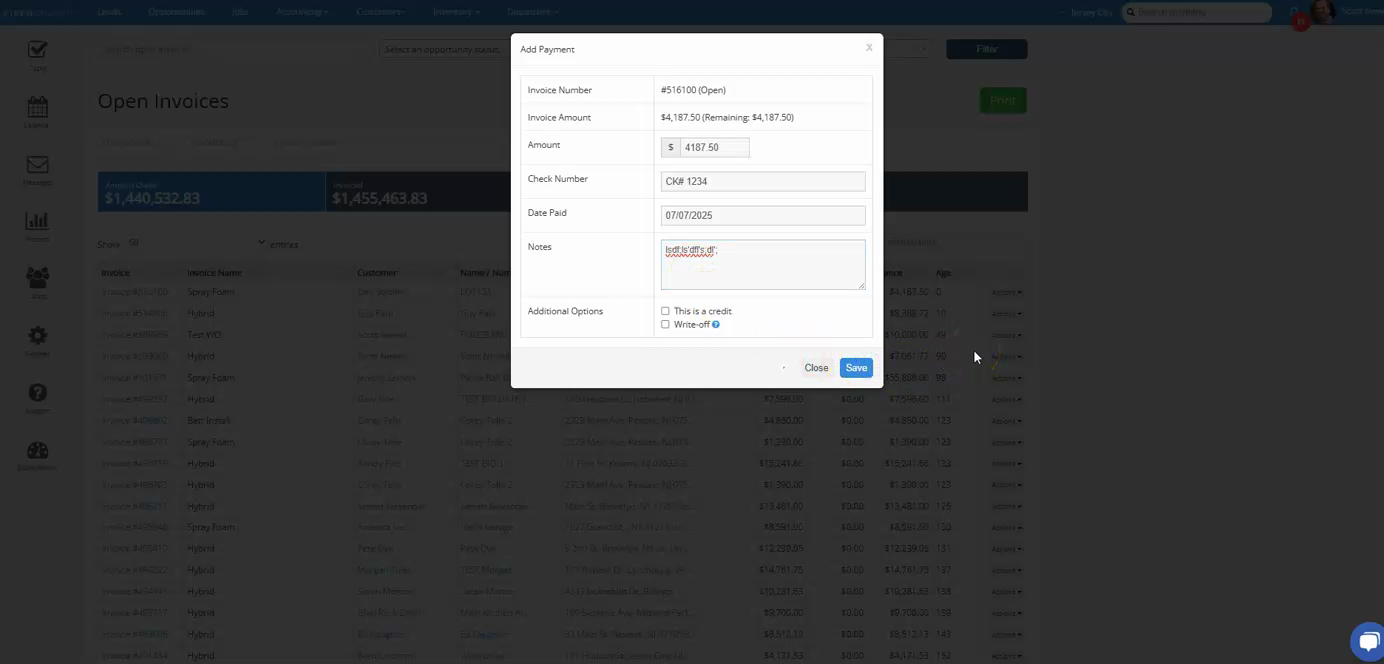
Step 4: Enter the payment details. In this case, we're entering 4187.50 as the payment amount, 1, 2, 3, 4 as the check number, and the date you want to apply the payment. You can also add any additional notes.
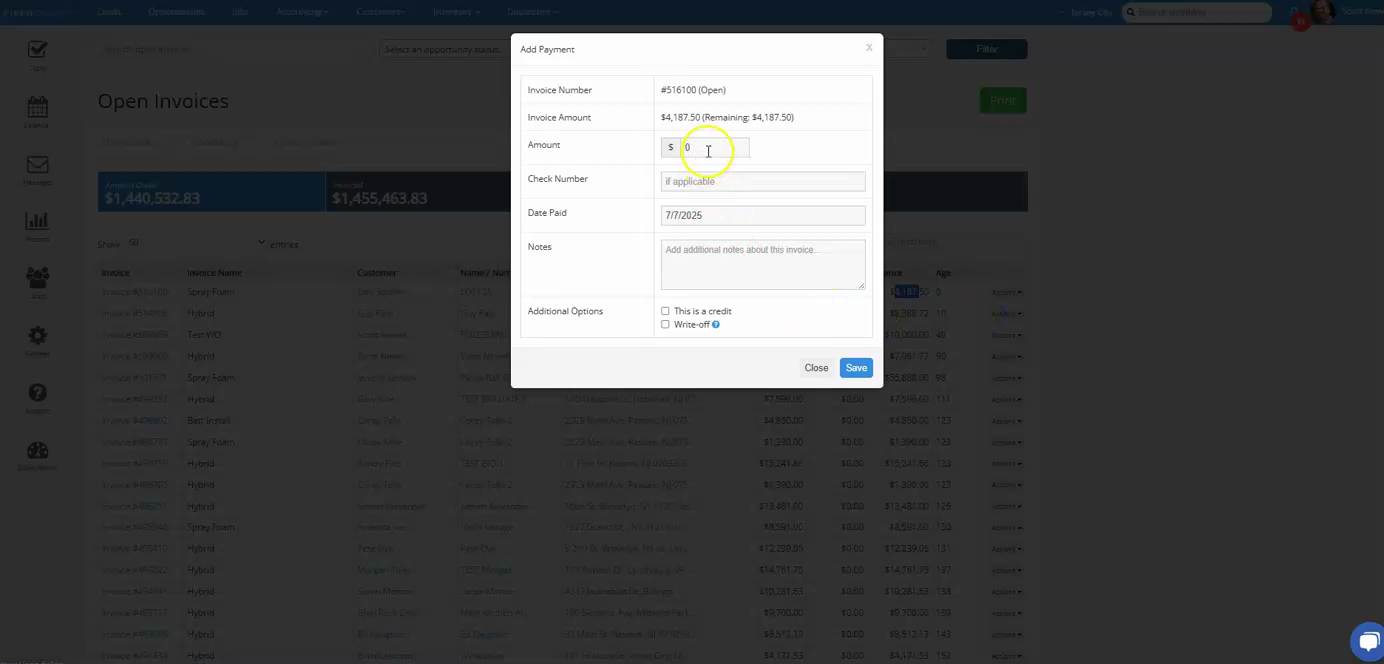
Step 5: Click on the save button. The payment will be applied and removed from your list of pending payments.