To customize Estimates, Work Orders, and Invoice columns click on Settings, then PDFS:
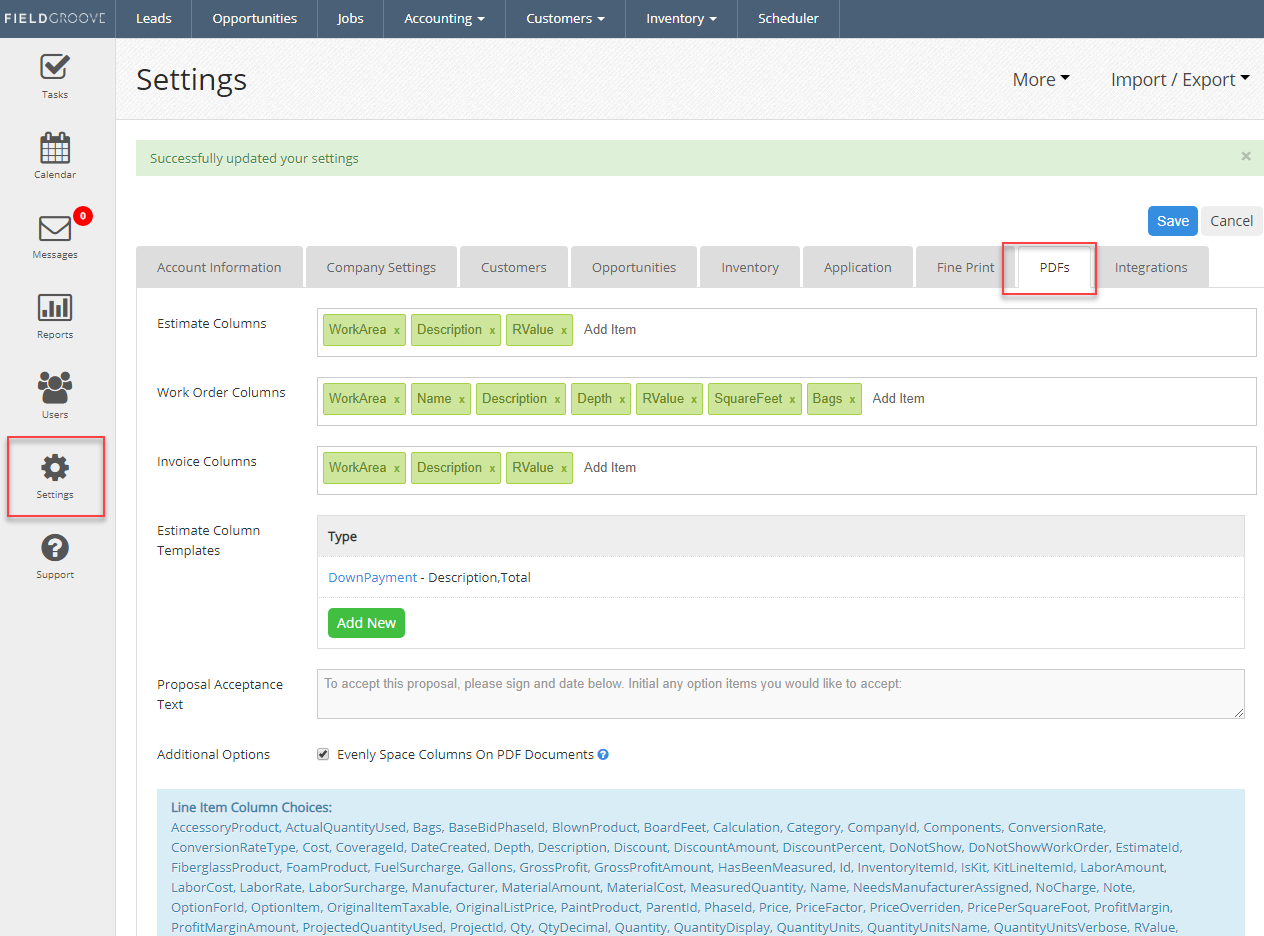
To change all estimates, more columns can be added to the “Estimate Columns” line. The example above has 3 columns and results in an estimate that looks like this:
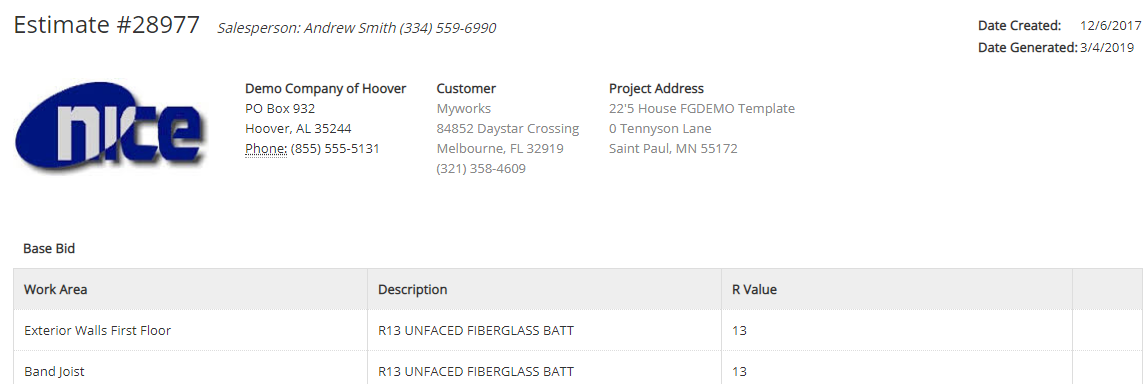
If we wanted each line to have a total, we would add “TotalAmount” to that line:

Note that the above steps will modify all “default” estimates. If you want a particular type of estimate to have its own columns, use the “Estimate Column Templates” section:

Now, we have a total amount shown:

Note that the above steps will modify all “default” estimates. If you want a particular type of estimate to have its own columns, use the “Estimate Column Templates” section:
For example, to have a custom set of columns for “Gutter” estimates, add a new column template via the green button shown above. You will be prompted with a dialog box to create a new set of columns:
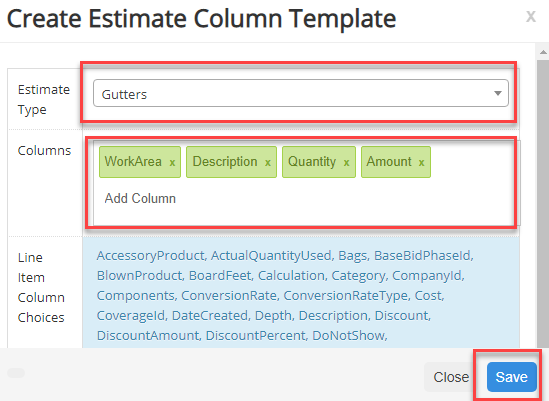
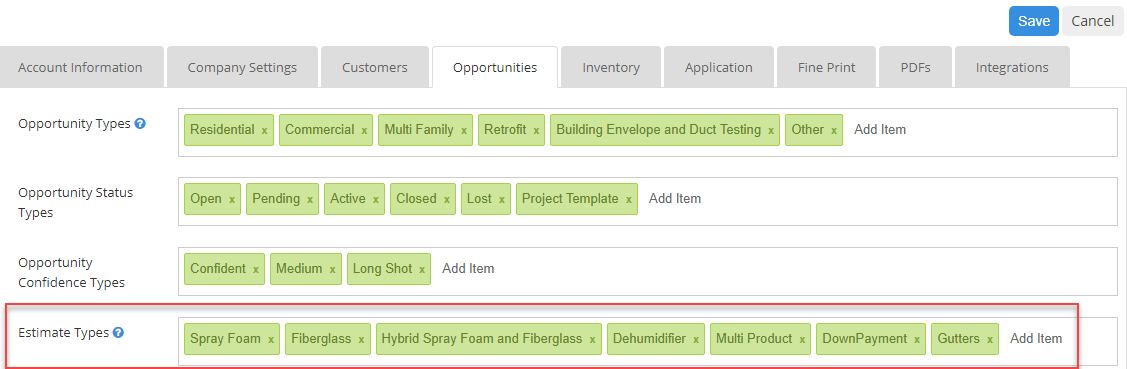
The fields in blue are options for the columns. Experiment with them to choose the ones you want to show. Note that the estimate types are set via the opportunities setting screen shown below.